
Appearance
Create a blank form
Use a blank form when you want complete control over the questions, layout, rules, and publishing method. AbcSubmit opens the form builder with an empty form, where you can name the form and begin adding fields.
Where to find it
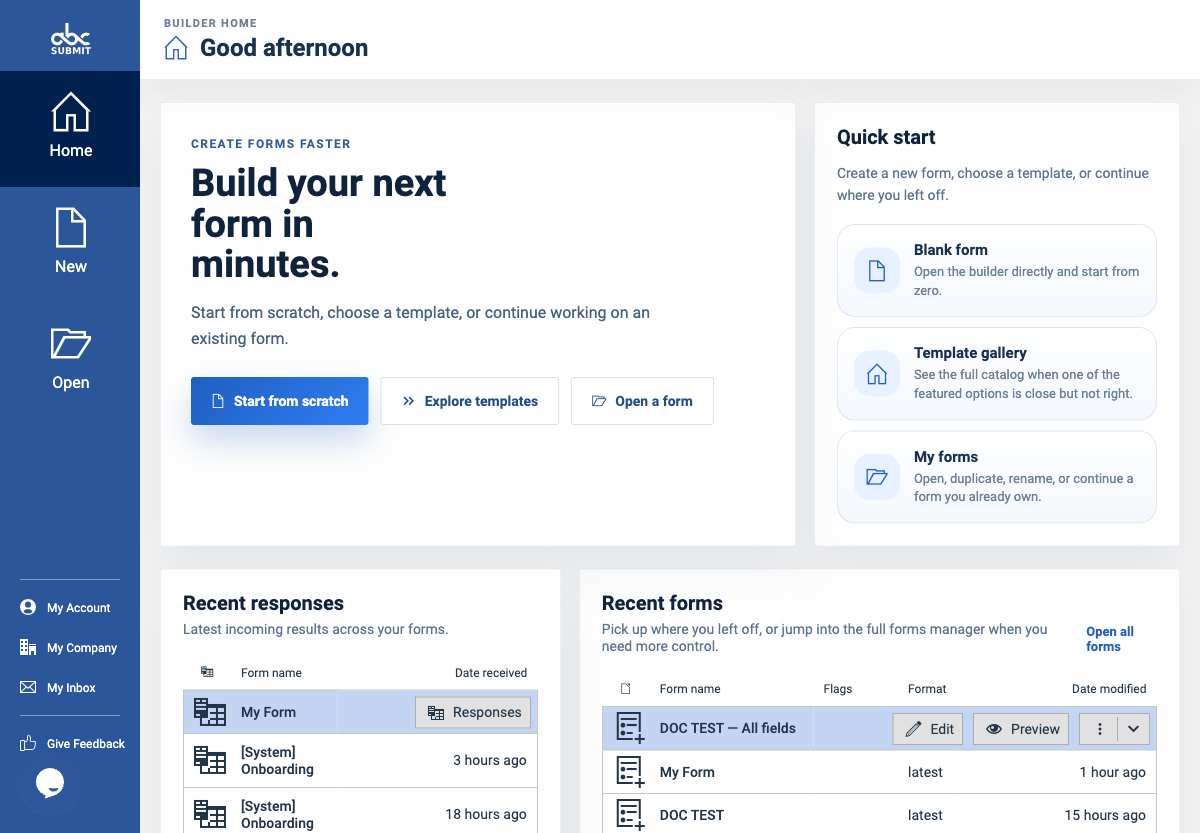
- Open the editor.
- Select New in the main navigation.
- Under Choose what you want to create, select Blank Form.
The Blank Form card is marked Builder and describes itself as an empty form you can customize from scratch.
Before you start
- Confirm that you have room for another form on the account’s plan.
- Have a working name ready. A specific name makes the form easier to find later in My Forms, reports, responses, and workflows.
- If you are using the form to try settings, give it a clear name such as
Practice — Event registrationso it is easy to distinguish from forms collecting real responses.
Create the form
- In New, select Blank Form.
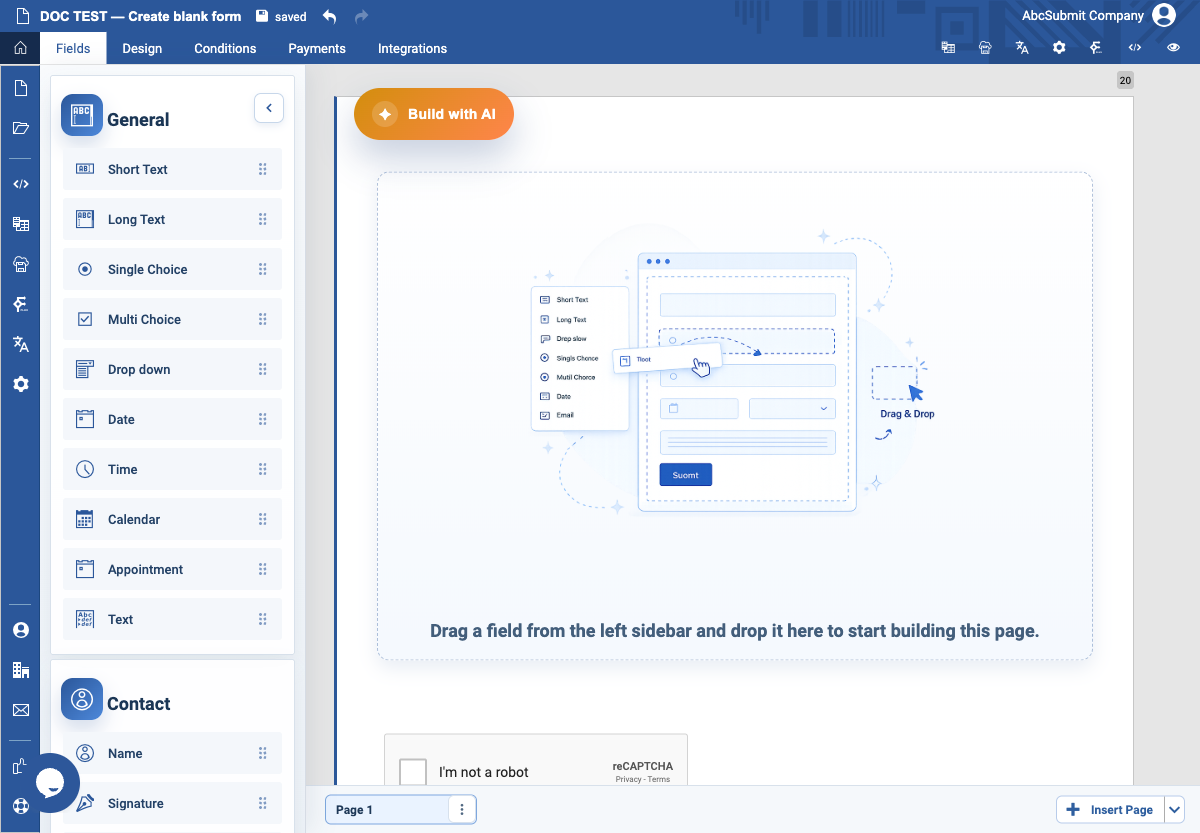
The editor opens with an empty form. AbcSubmit asks you to provide a name as part of saving the newly created form.
- Enter a short, recognizable name.
Good names describe the purpose, not just the department. For example, use Supplier onboarding request rather than New form.
- Confirm the name to save the form.
The new form now has its own editor page. Its name is shown in the editor and can be changed later from the form name control or Form Settings.
- Add the first field that a respondent should complete.
Start with the information you truly need. You can add more fields, pages, rules, notifications, and publishing settings after the form exists.
- Check that the form shows as saved before leaving the editor.
A newly created form is a private working item until you choose a publishing or sharing method. Creating it does not by itself send it to anyone.
What to do next
After creating the empty form, the usual path is:
- Add and configure fields.
- Decide which fields are required and in what order they appear.
- Configure submission, notification, and security settings.
- Preview the form as a respondent would see it.
- Publish or share it only when it is ready.
See the Form editor, Form settings, and Publish guides for those tasks.
Expected result
You have a named, saved form that opens in the editor with no inherited fields or settings. The form remains private until you deliberately share, embed, host, or otherwise publish it.
Naming guidance
Choose a name that answers three questions: what is being collected, for whom, and—when useful—what period or program it belongs to.
| Less useful | Better |
|---|---|
| Form 1 | Customer feedback — Q4 2026 |
| Registration | Spring workshop registration |
| Application | Volunteer application — Youth mentoring |
| Practice | Practice — Event registration |
Avoid using a person’s name, a password, or sensitive response information in a form name. Form names can appear in lists, notifications, and references elsewhere in the product.
Notes and limitations
- A blank form starts empty. It does not inherit fields, design, settings, or workflow logic from another form.
- If you need an established layout or process, start from a template instead; it is usually faster and reduces setup mistakes.
- Account plan limits and permissions can affect whether creation is available. If AbcSubmit shows an upgrade notice, resolve that before relying on the form for production use.
- Creating a form does not change existing forms. Keep practice forms separate from forms used to collect real submissions.