
Appearance
My Company administration
Use My Company to view or, with the required company-administration permission, manage company identity, users, groups, permissions, and invitations. These changes affect other people and access to data; they are approval-required operational actions.
Sections
| Section | Purpose | Before you make changes |
|---|---|---|
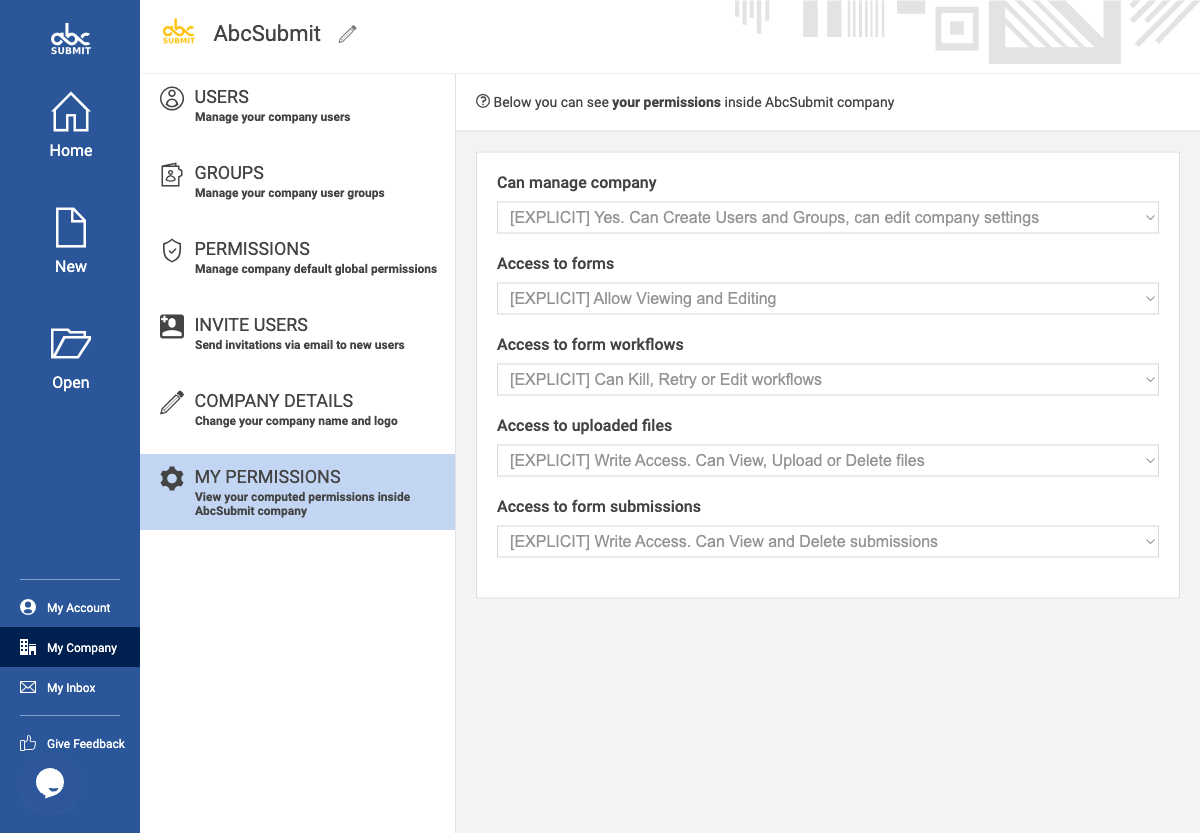
| My permissions | Shows your computed company permissions. | Read-only review is safe. |
| Manage users | Lists company user accounts and their state. | Confirm the person’s role and access needs before changing their account. |
| Manage groups | Lists permission groups. | Confirm how membership and permissions affect access before changing a group. |
| Permissions | Shows or changes global permission settings. | Review the effect on company users before changing access defaults. |
| Invite users | Sends email invitations to join the company. | Invite only people who should join the company. |
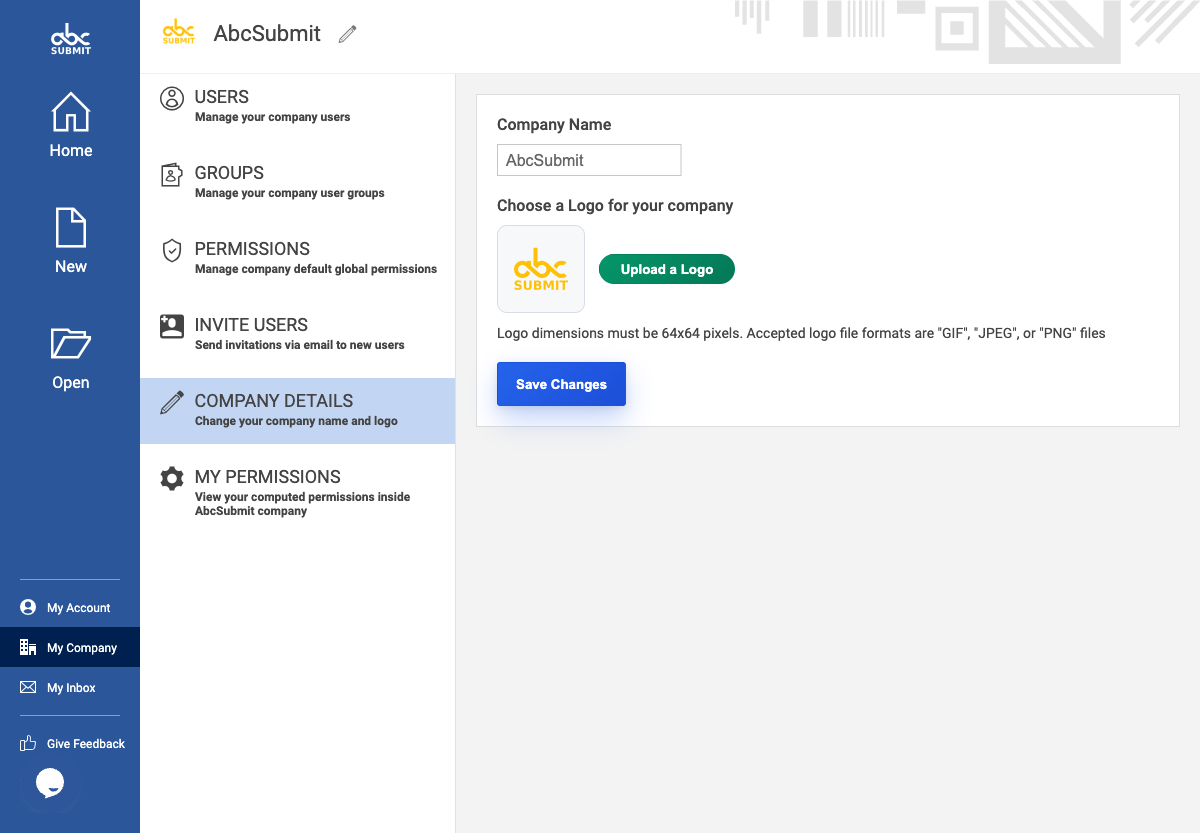
| Company details | Creates or edits company details. | Confirm the information is correct before saving changes. |
Review company settings
- Open My Company.
- Start with My permissions and confirm whether you have company-management permission.
- Open the relevant section to review the current access model.
- Before changing users, groups, permissions, invitations, or company details, confirm the change with the appropriate company administrator.
- Review the resulting access and membership after saving.
Changes that affect company access
The company UI supports creating or editing a company, editing users, changing group membership or active state, deleting users, creating/editing/deleting groups, changing group permissions, setting global permissions, and inviting users. These actions can change who can access company forms and data. Make them only when they match your organization’s access policy.
Expected result
An administrator can understand where company controls live and which permissions they govern without accidentally changing company membership or access.
Company workspace sections
The My Company area contains six sections:
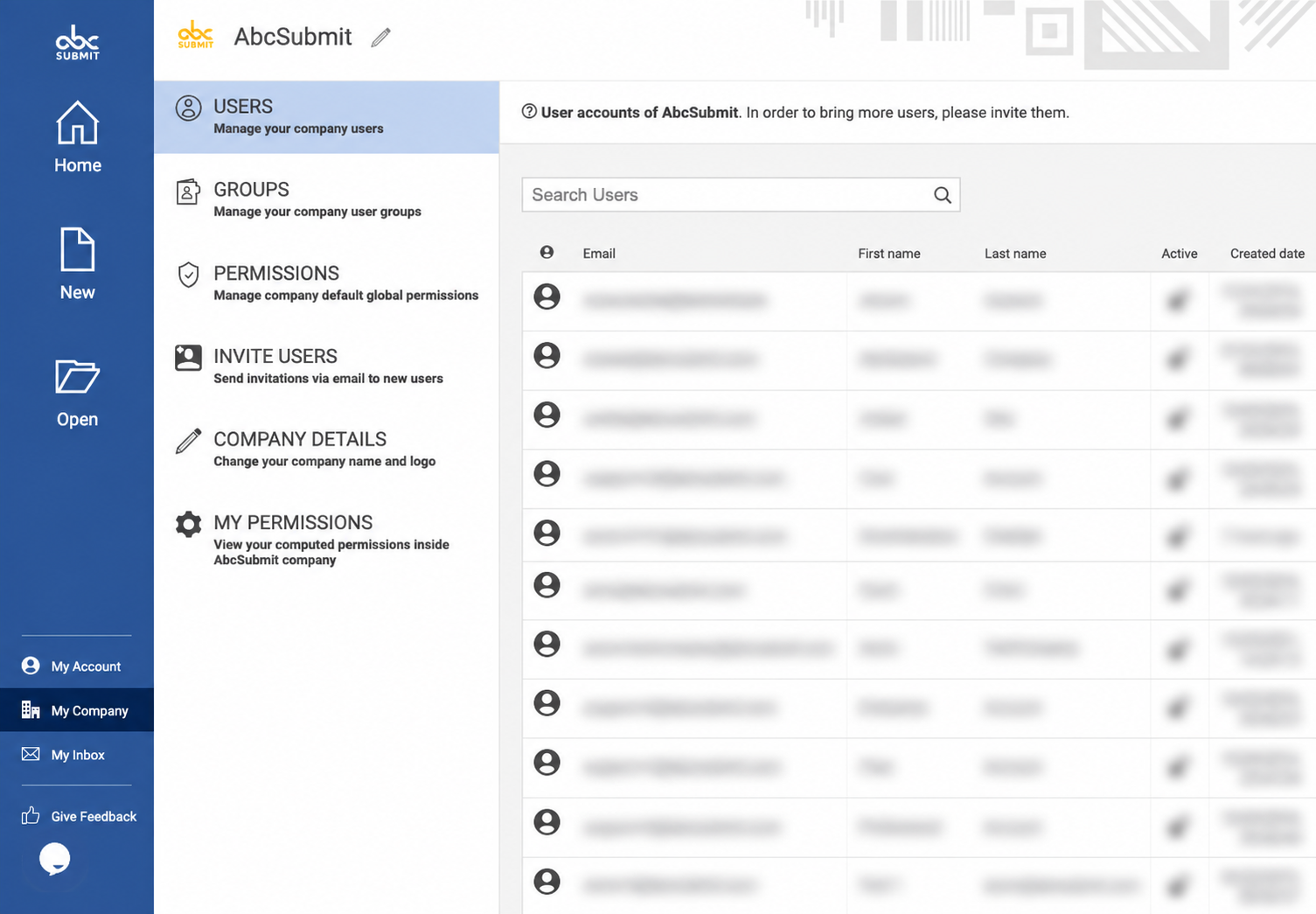
- Users — a table of company accounts with email, first name, last name, active state, and created date. The page also provides the path to invite additional users.
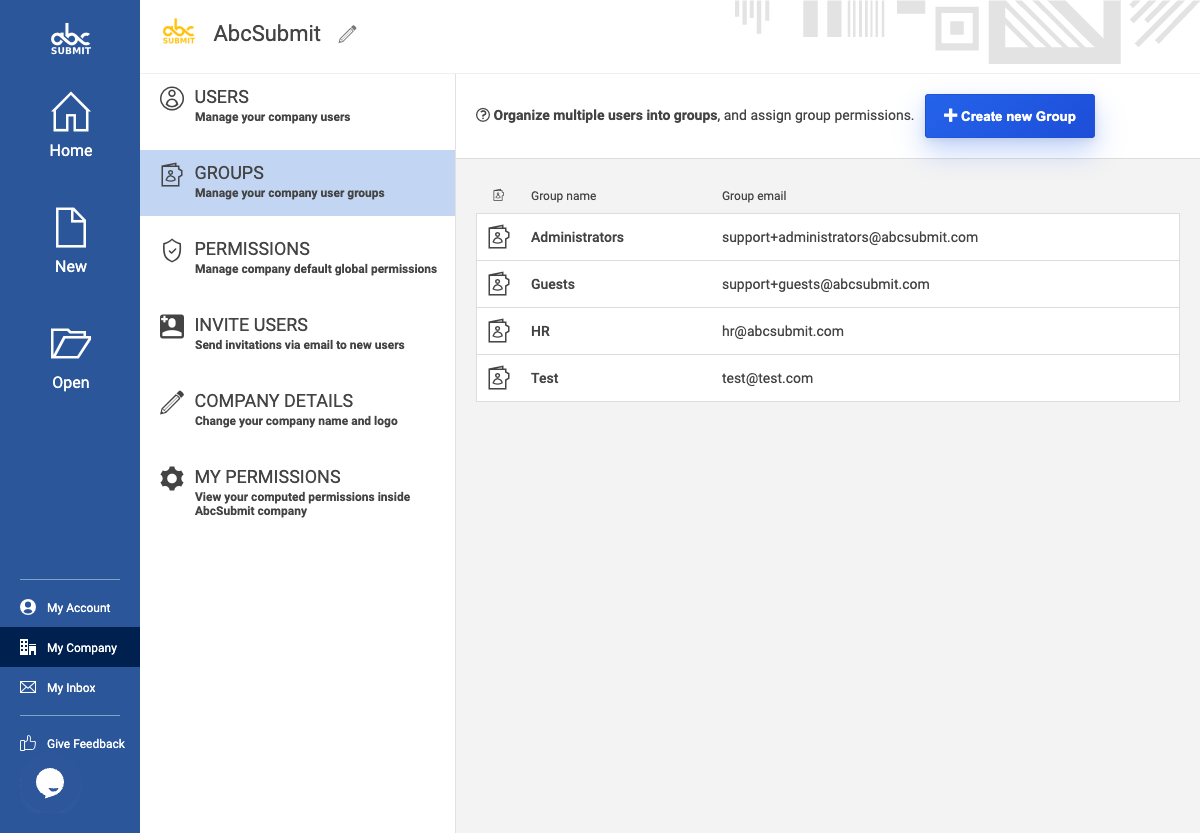
- Groups — a table of groups with group name and group email, plus Create new Group.
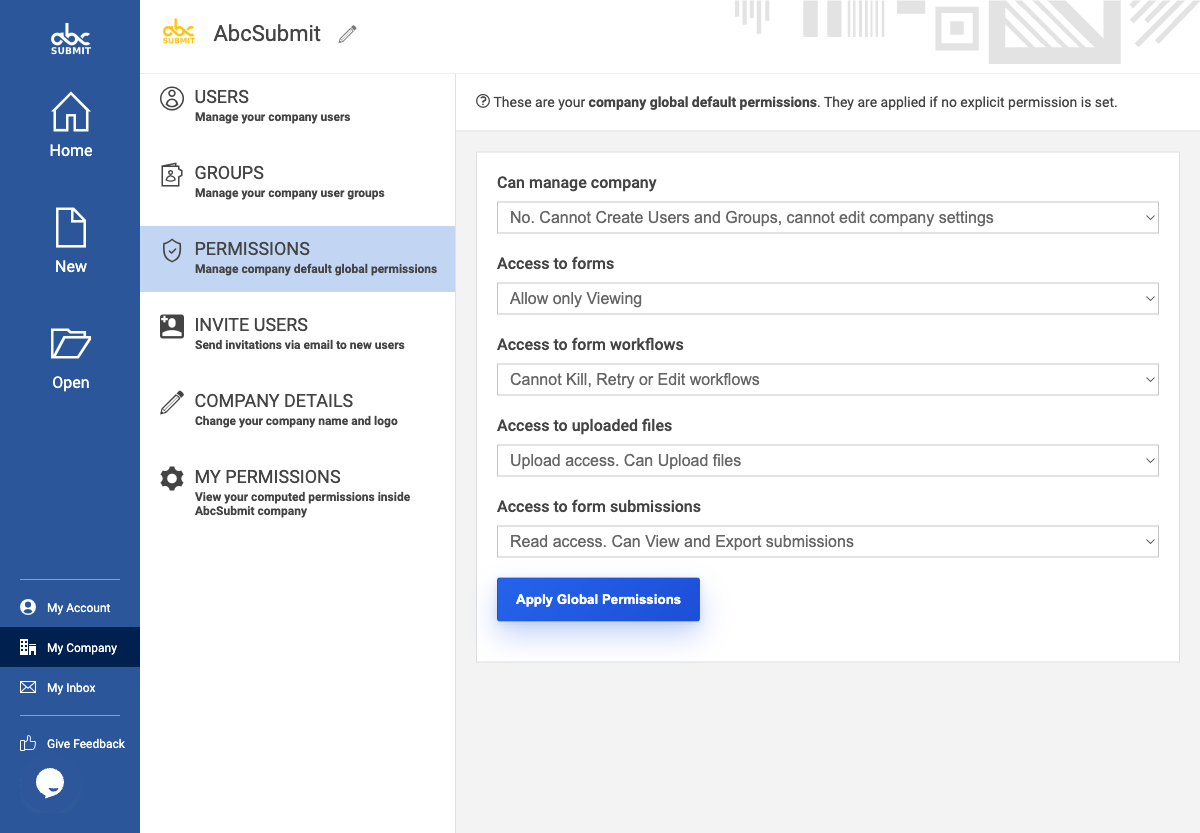
- Permissions — company-wide defaults for company management, forms, workflows, uploaded files, and submissions. Each category offers an inherit/default choice plus progressively broader explicit choices.
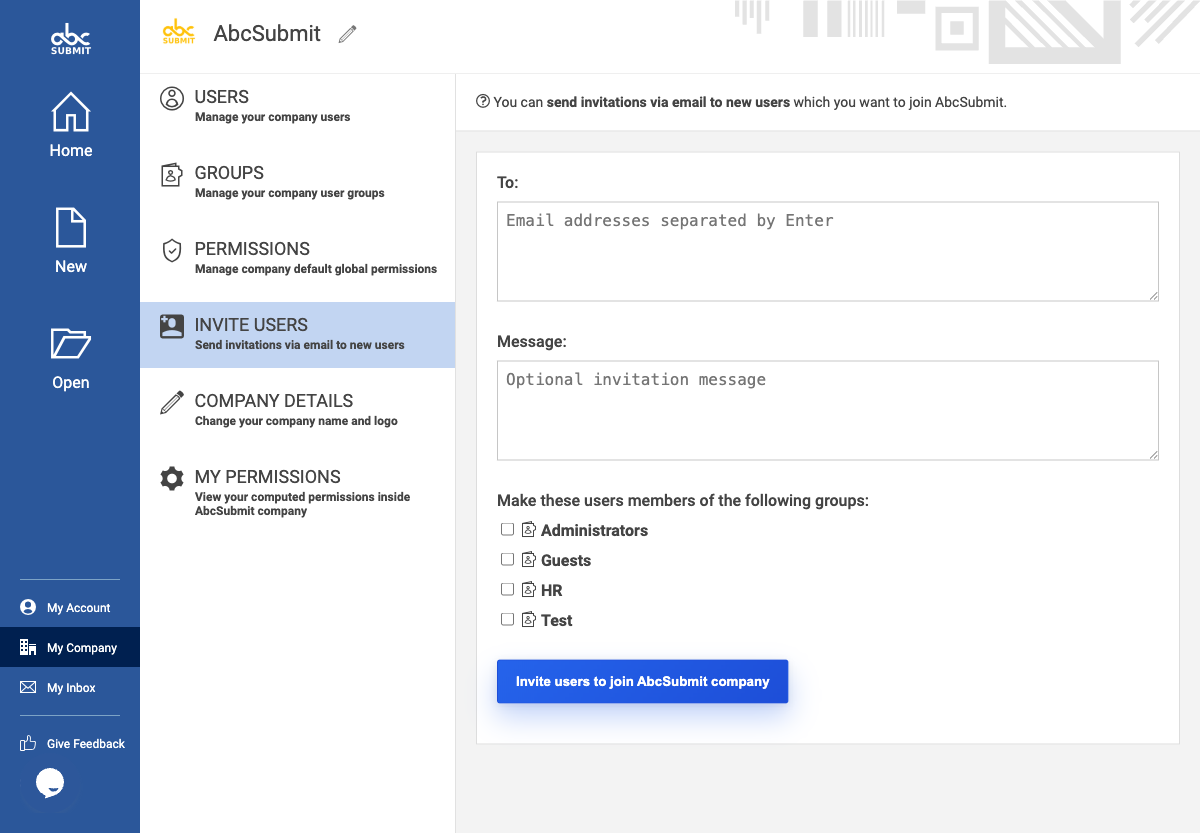
- Invite users — a
Tofield, aMessagefield, group checkboxes (for example Administrators, Guests, HR, and Test), and an invitation submit action. - Company details — a company-name field, logo picker/upload, a 64×64 pixel logo requirement, and Save Changes.
- My permissions — computed permissions with
[INHERIT]and[EXPLICIT]values for the same access categories, useful for diagnosing why an account can or cannot perform an action.
Permission vocabulary
The permissions screen uses these access levels:
| Area | Levels shown in the UI |
|---|---|
| Company management | Can manage company, or cannot create users/groups and edit company settings |
| Forms | Restrict access; allow viewing; allow viewing and editing |
| Workflows | Cannot kill/retry/edit workflows; can kill/retry/edit workflows |
| Uploaded files | Restrict access; read; upload; write (view, upload, delete) |
| Submissions | Restrict access; read (view/export); write (view/export/delete) |
Choose inherit when the account should follow the lowest applicable group/company default. Choose an explicit value only when the resulting access has been approved; changing global defaults can affect every user.