Build HR forms that make hiring and employee onboarding easier
Create job applications, onboarding forms, employee requests, evaluations, and approval workflows in one flexible form builder. Give candidates and employees a clear experience while HR keeps structured, actionable records.

One HR form builder for the employee lifecycle
HR work begins before a person is hired and continues through onboarding, development, everyday requests, and offboarding. AbcSubmit helps teams replace disconnected documents and email threads with customizable online HR forms that have clear fields, validation, notifications, and next steps.
Recruitment forms
Collect applications, resumes, availability, role-specific screening answers, references, and candidate consent.
New employee onboarding
Gather personal details, emergency contacts, policy acknowledgements, equipment needs, and account requests.
Employee self-service
Create leave requests, information updates, travel requests, document requests, and internal HR inquiries.
Performance and development
Standardize reviews, self-assessments, peer feedback, training registrations, goals, and development plans.
Workplace reporting
Receive incident reports, employee feedback, workplace concerns, and supporting documents through a defined channel.
Offboarding forms
Coordinate resignations, exit feedback, access removal, equipment returns, and final department sign-offs.
What happens after an HR form is submitted?
The best HR forms do more than collect answers. They move each request to the right person, preserve context, and make the next action obvious.
Submit
A candidate, employee, manager, or HR specialist completes the form.
Validate
Required fields and conditional questions help improve data completeness.
Notify
The appropriate HR team member or manager receives an alert.
Review
Reviewers approve, reject, request changes, or assign follow-up.
Continue
The workflow sends the next message or hands work to another team.
Record
The submission remains organized for search, export, and reporting.
For hiring or onboarding processes with several decision points, see how multi-step approval workflows route submissions between recruiters, managers, IT, finance, and HR.
Create better job application forms
A good online job application form asks for the information needed to evaluate the role without forcing every candidate through irrelevant questions. Start with contact details and experience, then use conditional logic for role-specific sections.
File-upload fields can collect resumes, portfolios, certificates, or other supporting documents. Date, choice, address, email, signature, and terms fields can support a more structured application when appropriate.
- State the role and application expectations clearly.
- Keep initial screening questions focused and job-related.
- Accept common resume and portfolio formats.
- Use conditional fields for location, role, or experience.
- Send a useful confirmation with the next step.
- Test the complete application on a mobile device.
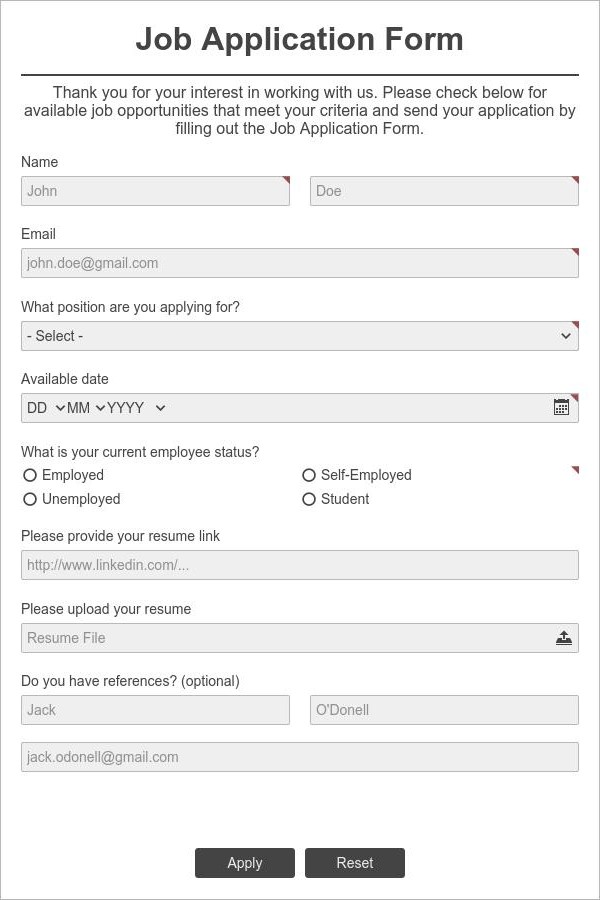
HR form examples and the workflow behind them
Choose the form based on the decision or task it must support. The form fields, reviewers, notifications, and retention needs may differ for each process.
| HR process | Useful fields | Typical next step |
|---|---|---|
| Job application | Name, email, address, role selection, long text, file upload, terms | Notify a recruiter, screen the candidate, and route qualified applications to the hiring manager. |
| Employee onboarding | Personal details, emergency contact, date, address, signature, file upload | Confirm receipt and send tasks to HR, IT, facilities, payroll, or the manager. |
| Time-off request | Employee, leave type, start/end dates, comments, attachment | Route to the manager, record the decision, and notify the requester. |
| Performance review | Rating, long text, goals, survey questions, signature | Combine employee and manager feedback, then record agreed actions. |
| Employee information update | Name, address, contact details, effective date, supporting file | Send verified changes to the team responsible for employee records. |
| Incident or workplace report | Date, time, location, description, people involved, picture, file upload | Alert the responsible reviewer and initiate investigation or corrective action. |
| Offboarding checklist | Last day, reason, equipment, access, tasks, acknowledgements | Coordinate handoffs and confirm completion across departments. |
AbcSubmit’s Human Resources template library includes starting points for job applications, holiday requests, reviews, complaints, resignations, referrals, emergency contacts, evaluations, and incident reports.
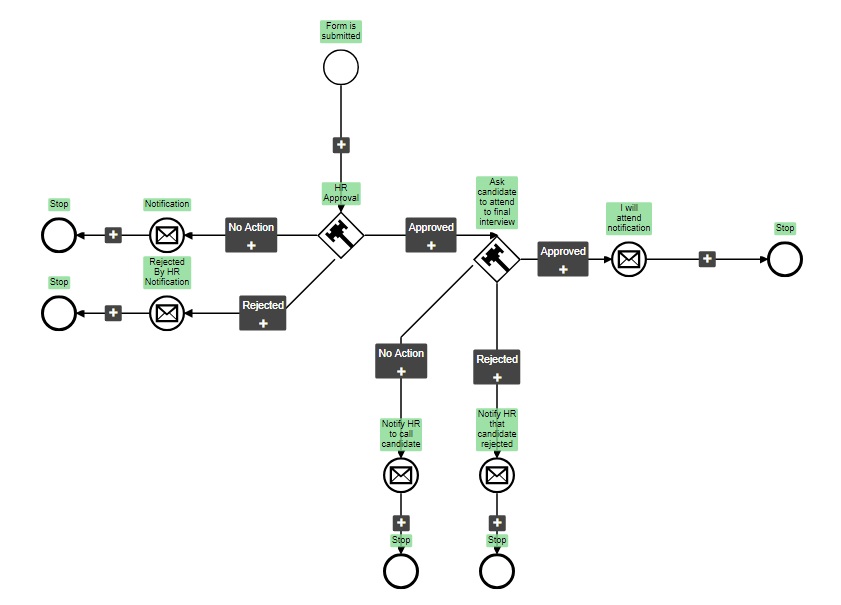
Automate onboarding without losing the human touch
Automation should remove repetitive coordination—not make a new employee feel processed. Use one clear onboarding form to collect required details, then send personalized confirmations and route internal tasks to the teams responsible for the employee’s first day.
A practical onboarding workflow
- HR initiates onboarding: send the new employee a clear request for required information.
- The employee completes the form: collect only the information needed at this stage.
- HR reviews the submission: check missing details and uploaded documents.
- Internal teams receive tasks: notify IT, payroll, facilities, or the manager based on the role.
- The employee receives confirmation: explain what is complete and what happens next.
For a wider view of repeatable company processes, explore operational forms for growing businesses.
AbcSubmit features that support HR teams
Feature availability and usage limits depend on the selected plan. Check the current plans and pricing matrix before choosing a setup for your team.
Flexible form fields
Use short and long text, dropdowns, choices, dates, addresses, email, file uploads, pictures, signatures, terms, surveys, ratings, and other supported fields.
Conditional logic
Show role-specific, location-specific, or answer-specific questions and keep the form relevant to each person.
Workflow automation
Connect form submission with review stages, notifications, approvals, and follow-up processes.
Save and resume
For longer processes, eligible plans can let respondents pause a submission and return later.
Data and integrations
Depending on the plan, connect form processes with Google Sheets, Google Drive, Dropbox, Slack, Trello, Jira, HubSpot CRM, webhooks, Zapier, and other tools.
Team and deployment options
Paid plans add capacity and may include sub-users. An on-premise option is available for organizations with different deployment requirements.
Choose features based on the process, not the longest feature list
A recruiting form may prioritize file uploads and routing. An onboarding process may need signatures, save-and-resume, multiple users, and more storage. Map the workflow first, then compare the current limits and plan features.
HR form design and privacy checklist
Employee and candidate forms can contain sensitive information. Design each form deliberately and involve the appropriate privacy, security, or legal stakeholders for your organization and jurisdiction.
- Collect only information required for the stated HR purpose.
- Explain why information is requested and how it will be used.
- Use job-related screening questions and consistent evaluation criteria.
- Limit access to the people who need the submission.
- Avoid requesting highly sensitive data earlier than necessary.
- Use clear consent, acknowledgement, and terms language where appropriate.
- Define how long records should be retained and when they should be removed.
- Test confirmation messages so sensitive answers are not repeated unnecessarily.
- Review integrations and exports that receive HR data.
- Check keyboard use, labels, contrast, mobile layout, and error messages.
- Document who owns the form and who maintains the workflow.
- Review forms when policies, roles, or legal requirements change.
If submissions need searchable storage and reporting, read about an online form builder with database storage. For WordPress deployment, see the AbcSubmit WordPress form guide.
Frequently asked questions
What HR forms can I create with AbcSubmit?
You can create job applications, employee onboarding forms, holiday requests, reviews, evaluations, referrals, emergency contact forms, resignations, incident reports, feedback forms, and other custom HR processes.
Can applicants upload resumes and documents?
Yes. File Upload is among the fields shown in AbcSubmit’s current feature matrix. Plan limits for forms, fields, submissions, files, and storage vary, so review the pricing page for the current details.
Can an HR form use conditional logic?
Yes. Conditional rules can show different questions based on a selected role, location, employment status, or earlier answer. The number of available rules depends on the plan.
Can HR requests go through an approval workflow?
AbcSubmit supports workflows. You can use them to route leave requests, applications, employee changes, or other submissions through appropriate review steps.
Can HR forms include electronic signatures?
Signature is listed as an available form field. Whether an electronic signature is suitable for a particular document depends on your process, policies, and applicable requirements.
Can I connect HR forms with other applications?
Available integrations vary by plan and include tools such as Google Sheets, Google Drive, Dropbox, Slack, Zapier, Trello, Jira, HubSpot CRM, and webhooks.
Can I embed an HR form on WordPress?
Yes. AbcSubmit forms can be published on a website, including WordPress. Test the embedded form on desktop and mobile before sharing it with candidates or employees.
Does AbcSubmit offer HR form templates?
Yes. The Human Resources category contains customizable templates that can be used as a starting point and adapted to your organization’s workflow.
Create a better HR experience from application to onboarding
Start with an HR form template, customize the fields and workflow, and give candidates, employees, managers, and HR one clearer process.